
DJI Matrice 4T (M4T) thermal: the complete guide to FLIR Tools and Pix4D conversion
Convert DJI Matrice 4T (M4T) thermal R-JPEGs into FLIR-compatible files for FLIR Tools, Thermal Studio, and Pix4Dmapper. Includes real-data accuracy benchmarks, step-by-step workflows, and M30T migration notes.
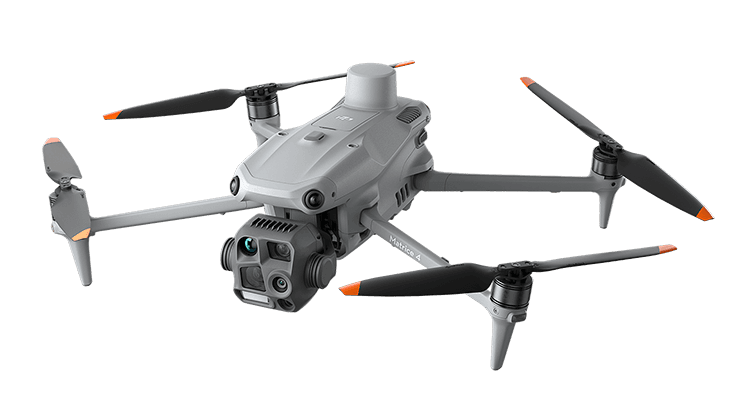
The DJI Matrice 4T (M4T), released in January 2025, is a compact inspection drone often considered as the migration path from the Matrice 30T (M30T), with integrated thermal, visible, and laser-rangefinder payloads. This guide walks through everything you need to take M4T thermal data into FLIR Tools, FLIR Thermal Studio, Pix4Dmapper, or Agisoft Metashape, with real-data accuracy benchmarks measured on actual M4T captures.
If you are evaluating the M4T for thermal inspection work, or migrating an existing M30T workflow to the new platform, the conversion side of the workflow is what you'll spend the most time on after the first flight. Here is what to expect.
TL;DR
- M4T thermal R-JPEGs use DJI's proprietary radiometric format. FLIR Tools, FLIR Thermal Studio, Pix4Dmapper, and Metashape cannot read the temperature data directly — same situation as the M30T before it.
- Two practical output formats fix this: FLIR-compatible R-JPEG (for FLIR Tools / Thermal Studio) and float32 TIFF (for Pix4Dmapper / Metashape / QGIS).
- Accuracy is excellent. With a DJI Thermal SDK-based converter, TIFF output is bit-exact (0.000 °C added error). FLIR R-JPEG round-trip stays under 0.001 °C average / 0.0024 °C max on real M4T data — about 1/20 of the sensor's own NETD spec.
- The M30T workflow ports cleanly. Same thermal resolution, same DJI R-JPEG family. The EXIF model identifier changes (
M30T→M4T), but everything else is the same. - Recommended path: CRITIR Convert for batch conversion. For teams that want to skip conversion entirely, the sister app CRITIR reads M4T thermal directly.
What is the DJI Matrice 4T (M4T)?
The Matrice 4 series, announced January 2025, splits into two models: M4E (mapping, with a 4/3 CMOS visible camera) and M4T (inspection, with thermal + visible + laser rangefinder). The M4T is the inspection variant — folding airframe, integrated payload, designed for portability that the previous-generation M30T didn't quite match.
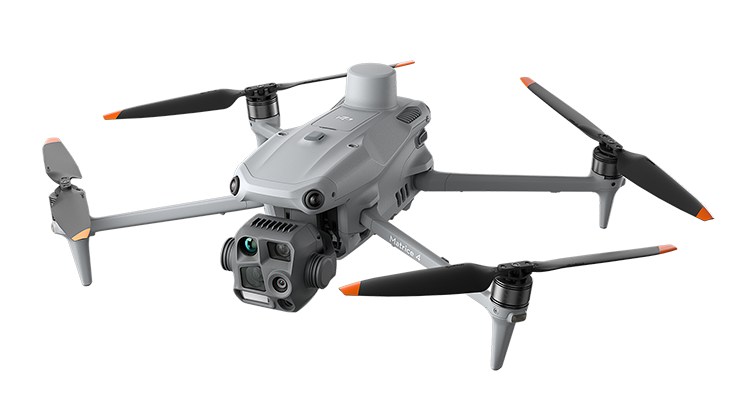
Thermal-relevant specs:
| Spec | Value |
|---|---|
| Thermal sensor resolution | 640 × 512 |
| Thermal sensitivity (NETD) | ≤ 50 mK @ f/1.0 |
| Temperature range | -20 °C to +150 °C (high gain) / 0 °C to +550 °C (low gain) |
| Output format | DJI radiometric JPEG (R-JPEG) |
| File extension | .JPG |
| EXIF model identifier | Model=M4T |
The thermal sensor is the same 640 × 512 resolution as the M30T, so anyone migrating an inspection workflow from M30T will find the data side familiar. What changed is mostly on the visible-light, laser-rangefinder, and form-factor side — important for fieldwork, neutral for the temperature pipeline.
What's inside an M4T thermal R-JPEG
An M4T .JPG is a JPEG container with extra APP markers carrying DJI's proprietary radiometric block. Cracked open:
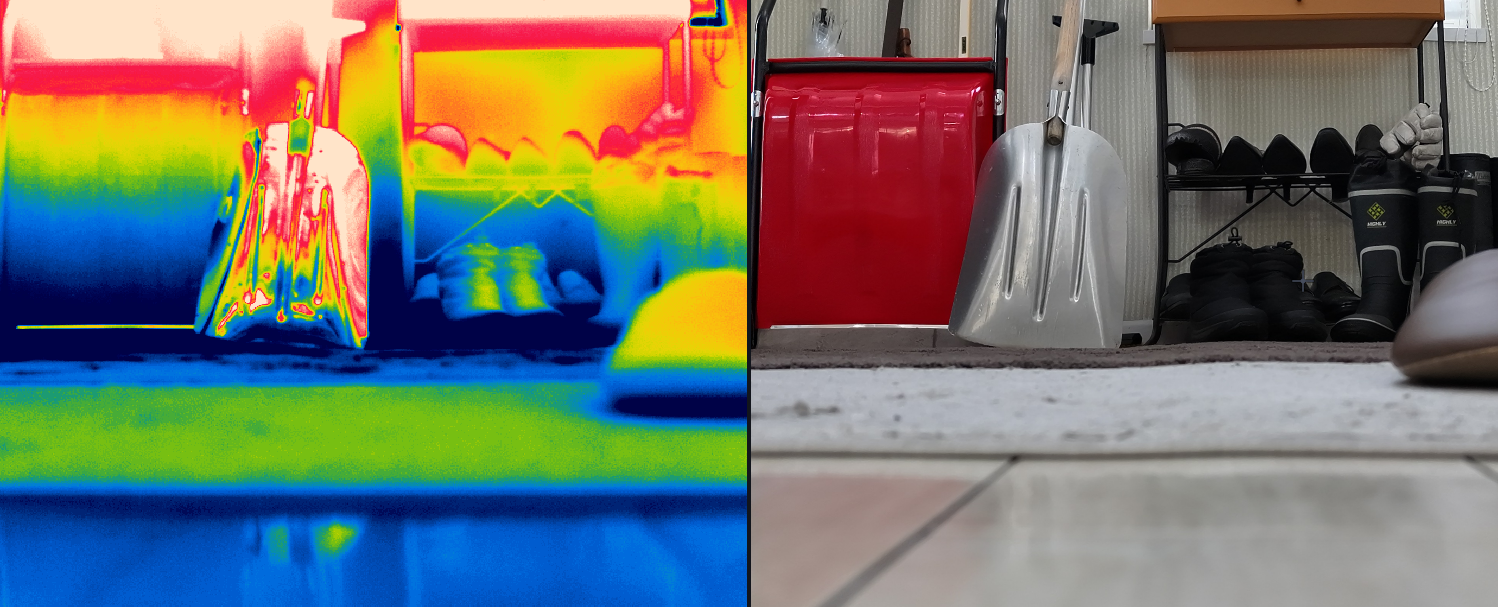
| Block | Content |
|---|---|
| JPEG image size (header) | 1280 × 1024 (super-resolution on) / 640 × 512 (super-resolution off) |
| Raw thermal data | 640 × 512 16-bit integer (sensor-native resolution) |
| Measurement parameters | Emissivity, reflected temperature, atmospheric temperature, humidity, distance — as set in DJI Pilot 2 |
| Camera info | Model=M4T, gimbal attitude, lens info |
| GPS / timestamp | Latitude, longitude, altitude, capture time (UTC + local) |
File naming follows DJI_<datetime>_<sequence>_T.JPG — the trailing _T marks thermal images. The paired visible images captured at the same moment use _V (visible) or _W (wide) / _Z (zoom) suffixes.
The problem is the same one that plagued the M30T before it: the DJI APP1 marker structure is not the FLIR FFF (FLIR File Format) that FLIR Tools expects. Open an M4T R-JPEG in FLIR Tools directly and you'll see the visible image — but the temperature tools return nothing.
From M30T to M4T: what changed for thermal data
If you have an existing M30T pipeline, here's the diff for the data side:
| Property | M30T | M4T | Migration impact |
|---|---|---|---|
| Thermal resolution | 640 × 512 | 640 × 512 | Same. SDK read code unchanged |
| File extension | .JPG (R-JPEG) | .JPG (R-JPEG) | Same |
EXIF Model | M30T | M4T | Different — adjust if you filter or aggregate by model |
| Planck constants | Per-unit in metadata | Per-unit in metadata | Same |
| Measurement parameters | Emissivity, reflected temp, etc. | Same set | Same |
| JPEG image size (header) | 640 × 512 | 640 × 512 or 1280 × 1024 | M4T's super-resolution setting changes the JPEG header dimensions |
Practically, the M30T conversion workflow ports to M4T unchanged. CRITIR Convert dispatches internally on Model but the user-facing operation is identical. Pix4Dmapper / Metashape templates built for M30T thermal also work for M4T.
Step-by-step: M4T → FLIR R-JPEG for FLIR Tools
Walking through the conversion with CRITIR Convert. The principle is the same with any DJI Thermal SDK-based converter — only the UI differs.
- Launch CRITIR Convert and open Home (or Convert) in the left sidebar.
- Drop your DJI Pilot 2 export folder onto the Source folder area. Subfolders are walked recursively; only thermal R-JPEGs (
*_T.JPG) are picked up. - Choose output format: select JPG (FLIR-compatible).
- Pick an output folder. Originals are never modified — output goes to a separate directory while preserving the source's subfolder layout.
- Start conversion. Each file takes a few hundred milliseconds; a 100-image flight typically completes in 1–2 minutes.
- Open one converted R-JPEG in FLIR Tools or FLIR Thermal Studio. Spot, area, and line measurement tools should now return live temperatures.
The measurement parameters (emissivity, reflected temperature, atmospheric temperature, humidity, distance) you set in DJI Pilot 2 are carried through automatically. You do not need to re-enter them in FLIR Tools — the same numbers come back.
Step-by-step: M4T → TIFF for Pix4Dmapper / Metashape
For thermal orthomosaic generation, the right output format is float32 TIFF.
- In CRITIR Convert, set Output format to TIFF (For analysis) — or JPG + TIFF if you want both formats in one pass.
- Run the conversion. Each output is a 640 × 512 single-channel float32 TIFF, with pixel values in degrees Celsius. You can sanity-check the temperature range in QGIS or ImageJ.
- In Pix4Dmapper:
- New project → Thermal Camera template
- Add the TIFF folder. GPS and camera info are read from EXIF automatically.
- Run Initial Processing → Point Cloud and Mesh → DSM, Orthomosaic and Index
- Export the orthomosaic as GeoTIFF for QGIS or ArcGIS
- In Agisoft Metashape:
- New chunk → add the TIFF folder
- Workflow → Align Photos → Build Dense Cloud → Build Mesh → Build Orthomosaic
- Export Orthomosaic → choose Single-band raster to preserve temperature values
- For detailed settings and orthomosaic-specific gotchas, see the complete Metashape thermal orthomosaic guide.
Existing M30T templates for either platform work as-is — there's no need to build M4T-specific templates from scratch.
What the orthomosaic looks like
Once those M4T TIFFs go through Metashape, the result is a single-band temperature raster that can be rendered with any color palette, measured pixel-wise, or exported to QGIS / ArcGIS as a GeoTIFF. Below is one example output from the same TIFF + Metashape pipeline:
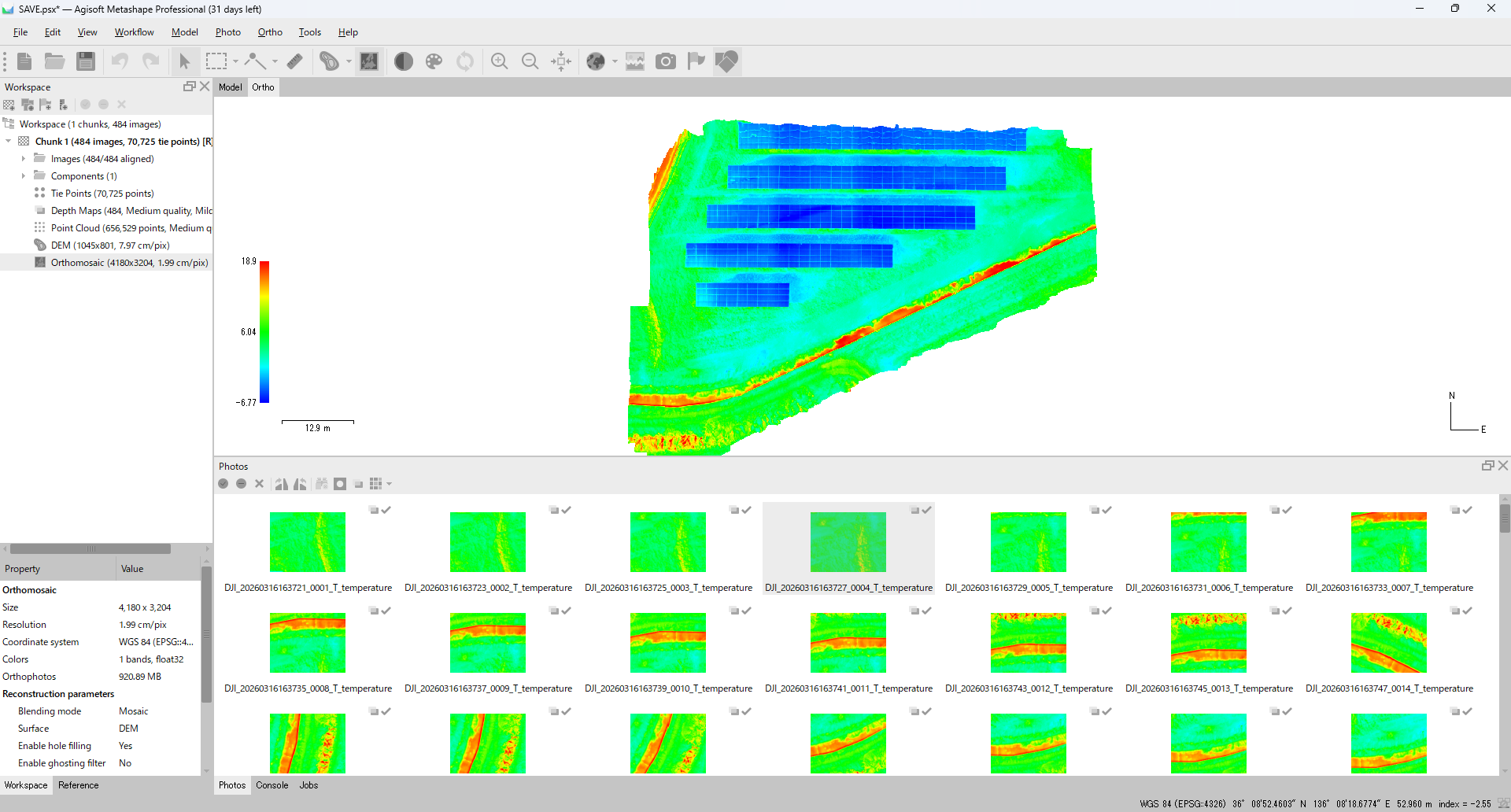
Full step-by-step instructions for this Metashape pipeline — Align Photos, Build Point Cloud, Build DEM, Build Orthomosaic, single-band raster export — are in the Metashape thermal orthomosaic guide.
Accuracy verification with real M4T data
We ran a representative M4T thermal R-JPEG (DJI_20260106130314_0004_T.JPG, temperature range 62.3 °C – 76.1 °C) through CRITIR Convert and measured the round-trip error:
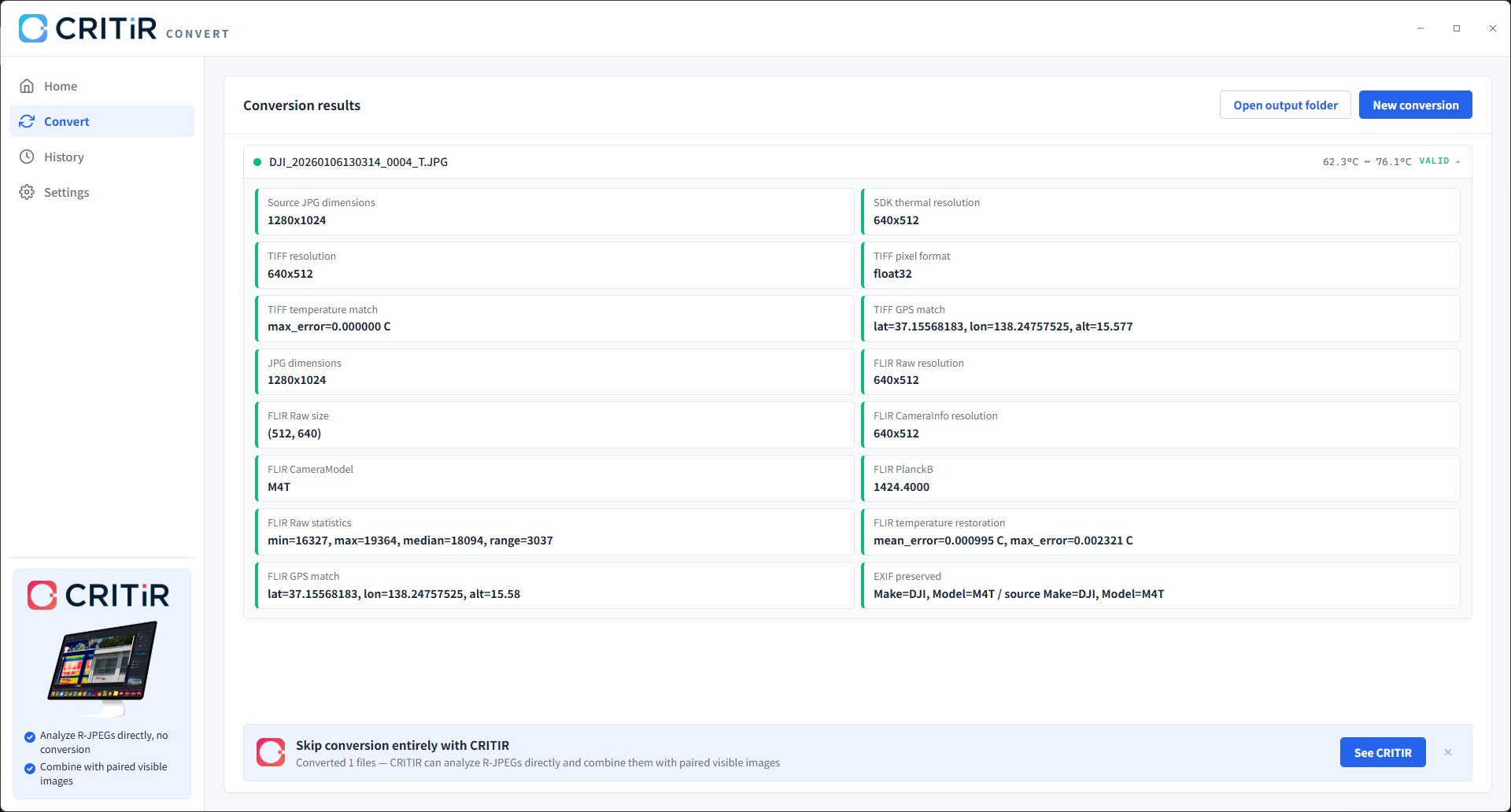
| Output format | Mean error | Max error | Resolution |
|---|---|---|---|
| TIFF (float32) | 0.000000 °C | 0.000000 °C | 640 × 512 |
| FLIR R-JPEG | 0.000995 °C | 0.002321 °C | 640 × 512 (FLIR Raw) |
A few takeaways:
- TIFF is bit-exact. The DJI SDK reads out a float temperature array; we write it straight to float32 TIFF. Round-trip error is literally zero.
- The FLIR R-JPEG error comes from 16-bit raw + Planck re-encoding. Max error of 0.0023 °C is about 1/20 of the M4T's own NETD spec (≤ 50 mK = 0.05 °C) — well below sensor noise.
- GPS is preserved precisely. Test capture: lat = 37.15568183, lon = 138.24757525, alt = 15.577 m → carried through to both TIFF and FLIR R-JPEG identical to the 8th decimal.
- EXIF Make / Model survive the round-trip.
Make=DJI, Model=M4Tis preserved on the output side, so downstream tools that key on model name continue to work.
For inspection workflows where temperature differentials are reported in tenths of a degree, this conversion error is invisible.
M4T-specific pitfalls
A few things to watch for in practice:
- Filename suffix matters. M4T thermal files end in
_T.JPG. Source folders typically also contain_V(visible wide),_Z(zoom), and_W(wide-angle) JPEGs. Confirm that your converter is only picking up thermal — CRITIR Convert filters automatically. - Paired visible images are not converted. Conversion is thermal-only. If your analysis depends on overlaying visible + thermal (e.g., for hot-spot localization on solar panels or roof inspections), consider the sister app CRITIR, which reads both side-by-side without conversion.
- JPEG header dimensions are not the same as thermal sensor resolution. When super-resolution is on, the M4T's JPG header reports 1280 × 1024, but the SDK still reads thermal data at the sensor-native 640 × 512. Some converters log both numbers — don't confuse them.
- Video (MP4) thermal is not handled. M4T can record thermal video, but R-JPEG conversion tools work on stills only. Extract frames first if needed.
The "don't convert at all" alternative
This entire guide has been built around conversion — M4T to FLIR Tools or M4T to Pix4Dmapper. CRITIR Convert's accuracy and batch performance are production-grade, but the underlying fact remains: conversion is still an extra step in your workflow.
There is another path. The sister app CRITIR reads DJI thermal R-JPEGs (including M4T) directly, then handles measurement, orthomosaic generation, and inspection report output inside a single application. The conversion step disappears.
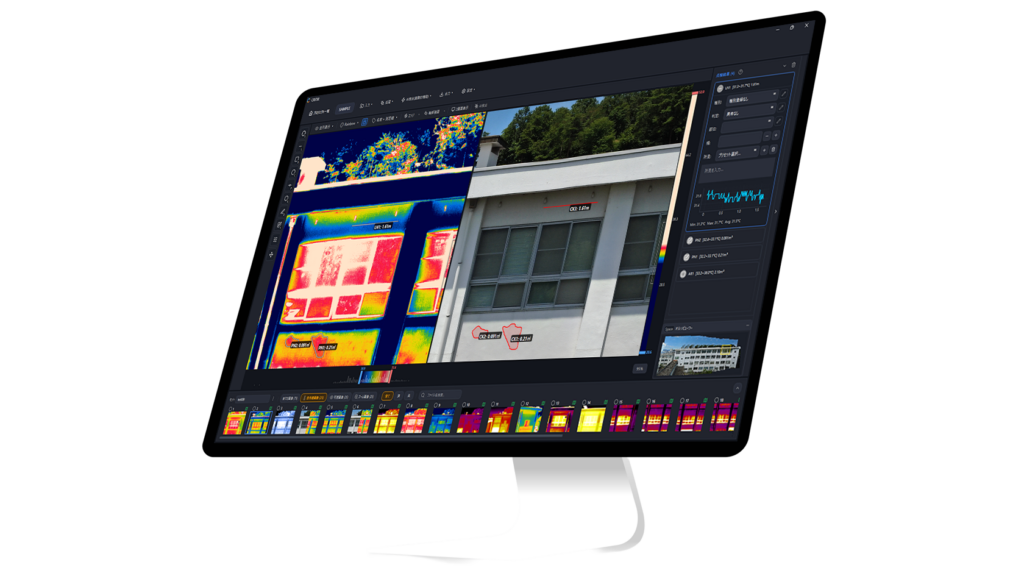
What CRITIR does
| Capability | Detail |
|---|---|
| Direct DJI ingest | M4T and every other DJI thermal camera open natively. Zero conversion step. |
| FLIR and HIKMICRO support | Existing FLIR datasets and HIKMICRO files open in the same app. |
| Visible + thermal side-by-side | Display, measure, and auto-project measurements across both layers. |
| Built-in orthomosaic generation | Wall and surface thermal orthomosaics generated inside CRITIR — no Pix4Dmapper or Metashape required. |
| Report templates | Export PDF / Word / Excel / DXF. Custom layouts available via the template builder. |
| Measurement auto-projection | A single measurement point is automatically projected onto every related image and onto the orthomosaic. |
Convert vs CRITIR: which one fits
| Your situation | Recommended tool |
|---|---|
| You want to keep your FLIR Tools / Thermal Studio workflow | CRITIR Convert |
| You want to keep Pix4Dmapper / Metashape at the center of your pipeline | CRITIR Convert |
| You want easy facade or thermal orthomosaic generation without separate tooling | CRITIR |
| You want one tool that goes from drone images to a signed inspection report | CRITIR |
| Visible + thermal overlay analysis is central to your work | CRITIR |
| You run a high-volume inspection pipeline | CRITIR |
| You handle occasional spot conversions | CRITIR Convert |
When CRITIR is the right call (and when it isn't)
Choose CRITIR (skip conversion) if:
- You produce inspection reports in-house and want a single tool covering the whole pipeline
- Your fleet is DJI-centric and the conversion step is real workflow overhead
- You generate wall or thermal orthomosaics as a routine deliverable
- Your analysis depends on visible + thermal overlays
Stick with the conversion route (CRITIR Convert) if:
- Your team is already deep in FLIR Tools / Thermal Studio and the switching cost is high
- You're locked into Pix4Dmapper / Metashape and want them at the center of the workflow
- You handle occasional one-off conversions, not a continuous inspection pipeline
- Your project volume is small enough that conversion overhead is negligible
Pricing and adoption
CRITIR is an all-in-one application, so its license is priced above CRITIR Convert (annual). Full pricing is published on the CRITIR pricing page. The honest question is total workflow cost: once you factor in time spent on conversion + separate analysis + manual report assembly, the breakeven tips toward CRITIR as inspection volume grows.
The cost-benefit depends on project scale. For a quote scoped to your annual volume, or to schedule a demo / trial, get in touch.
FAQ
- Does my M30T CRITIR Convert license also cover M4T?
- Yes. CRITIR Convert is not licensed per camera model — the same license converts M30T and M4T data interchangeably.
- Can it convert M4T thermal video?
- Currently still images (R-JPEG) only. For thermal video, you would extract frames to images first.
- Why does my conversion fail on some files?
- Three common causes: (1) the file is a visible-light JPEG (
_V/_W/_Zsuffix), not thermal; (2) the file was truncated mid-write during flight; (3) very rarely, a firmware version we haven't verified. Send us a sample at the contact form if you hit case (3). - Is there a per-image limit when batch-converting M4T flights?
- No software-imposed limit. Drop the entire flight folder; subfolder structure is preserved on output. We've run jobs with several thousand M4T images without issues.
- How can I try this on my own M4T data?
- Install CRITIR Convert and start the no-sign-up trial in the app for up to 30 conversions. We also run a managed conversion service if you'd rather send us the files and receive the converted outputs.
The full list of supported DJI cameras (including M4T) is on the compatibility page. Pricing is on the pricing page. For technical questions specific to your M4T workflow, send us a note.
Related guides:
- DJI Zenmuse H30T thermal conversion guide — the four-sensor Zenmuse payload counterpart, with H20T migration notes
- Convert DJI thermal to FLIR Tools and Pix4D — full tool comparison — the broader landscape of DJI → FLIR conversion tools in 2026
- Metashape thermal orthomosaic guide — TIFF → Metashape orthomosaic, step-by-step
Try CRITIR Convert
Convert DJI thermal R-JPEGs into FLIR-compatible files. Free trial with up to 30 conversions.
See the product page