
DJI Thermal Images Won't Open in FLIR Tools? Here's the Fix (2026)
DJI thermal R-JPEGs open as plain pictures in FLIR Tools — no spot temperature, no measurements. Here's exactly why, and the one-time conversion that makes every FLIR Tools measurement work again with no accuracy loss.
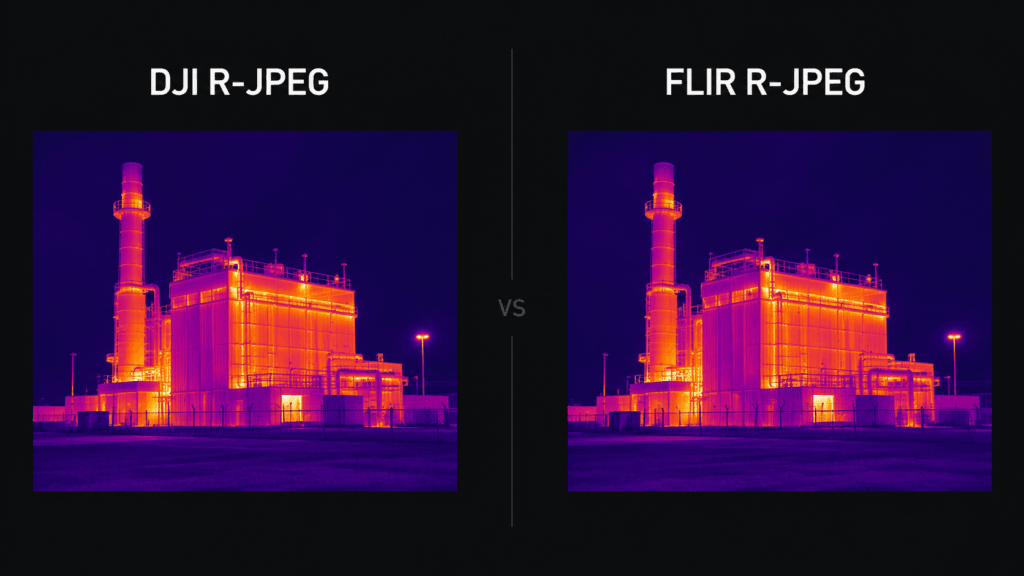
You shot a thermal mission with a DJI drone, dragged the .JPG files into FLIR Tools, and got a normal-looking preview image — but every measurement tool returns nothing. No spot temperature, no area min/max, no line profile. The file says it is radiometric, yet FLIR Tools treats it like an ordinary picture.
This is the single most common question from teams moving DJI thermal data into a FLIR-based workflow, and it has a precise cause and a reliable fix. This guide explains exactly why DJI thermal images won't open in FLIR Tools, then walks through the step-by-step process to make them open correctly — in FLIR Tools, FLIR Thermal Studio, and ResearchIR — without losing any temperature accuracy.
TL;DR
- DJI thermal R-JPEGs do not open as temperature data in FLIR Tools. The
.JPGcontainer is identical to FLIR's, but the radiometric block inside is DJI-proprietary, so FLIR Tools can only show the JPEG preview. - There is no import setting, plugin, or workaround inside FLIR Tools that fixes this. The file has to be re-encoded into FLIR's own format first.
- The fix is a one-time conversion of each DJI R-JPEG into a FLIR-compatible R-JPEG. After that,
File → Openin FLIR Tools shows live temperatures and every measurement tool works normally. - Accuracy is preserved. Because CRITIR Convert reads temperatures via the official DJI Thermal SDK, the added round-trip error stays well under 0.01 °C, and emissivity / reflected temperature / humidity / distance carry over automatically.
- If your target is Pix4Dmapper or Metashape rather than FLIR Tools, convert to float32 TIFF instead — see the Metashape orthomosaic guide.
Why DJI thermal images won't open in FLIR Tools
FLIR Tools and FLIR Thermal Studio read a specific radiometric structure called the FFF (FLIR File Format) block, embedded in the JPEG's APP1 marker. When FLIR software opens an image, it looks for that block, finds the 16-bit raw thermal array plus the Planck constants, and reconstructs a temperature for every pixel.
A DJI thermal R-JPEG does not contain an FFF block. It carries DJI's own proprietary radiometric layout instead. The two file types share the .JPG extension and both are valid JPEG containers — but on the inside they are completely different:
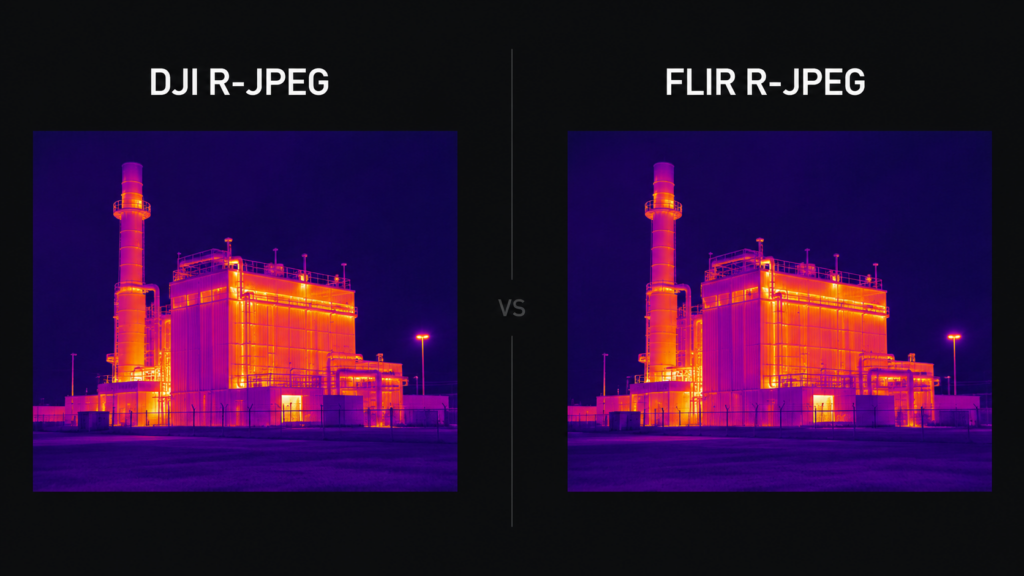
| FLIR R-JPEG | DJI R-JPEG | |
|---|---|---|
| Container | JPEG | JPEG |
| Extension | .jpg | .jpg |
| Radiometric marker | APP1 with FFF block | APP1 with DJI-proprietary block |
| Raw thermal data | 16-bit raw + Planck constants | DJI-specific layout |
| Opens in FLIR Tools? | Yes | No (JPEG preview only) |
This split comes from DJI's move from FLIR-sensor thermal cameras to its own thermal sensor stack and radiometric file format. Unlike FLIR-sensor models such as the Zenmuse XT / XT2 and Mavic 2 Enterprise Dual, cameras such as the Mavic 2 Enterprise Advanced, Mavic 3T, Matrice 30T, Matrice 4T, Zenmuse H20T, H20N, and H30T write DJI-format R-JPEGs that the FLIR ecosystem cannot decode directly.
So when you open a DJI _T.JPG in FLIR Tools, the JPEG decoder happily renders the embedded preview, but the measurement engine finds no FFF block and reports zero temperature data. Nothing is broken — the file simply is not in FLIR's format.
There is no "import" toggle inside FLIR Tools
Before the fix, it is worth ruling out the dead ends, because a lot of time gets lost here:
- There is no FLIR Tools setting that enables DJI files. No preference, no plugin, no "import DJI" menu. FLIR's parser only understands the FFF block.
- Renaming the file does nothing. The extension is already
.jpg; the problem is the internal structure, not the name. - The DJI Thermal Analysis Tool reads these files, but it is a separate application — it does not make the files openable inside FLIR Tools or Thermal Studio, and it does not export to FLIR format.
- A plain "RJPEG → TIFF" converter is not enough on its own. Some tools produce a TIFF that still is not what FLIR Tools expects. To open inside the FLIR ecosystem specifically, the output has to be a FLIR-format R-JPEG.
The only thing that actually works is re-encoding the DJI file into FLIR's format. That is a one-time conversion step, and once it is done the files behave exactly like native FLIR captures.
One current-version note: FLIR's desktop FLIR Tools / Tools+ line is now discontinued, and FLIR points users toward FLIR Thermal Studio Suite. If your field workflow still depends on FLIR Tools, the required conversion target is the same FLIR-compatible R-JPEG.
How to open a DJI thermal image in FLIR Tools — step by step
Below we walk through converting a DJI thermal image with CRITIR Convert and opening it in FLIR Tools.
- Gather your DJI thermal files. From a DJI Pilot 2 export, the thermal frames are the ones with a
_Tsuffix (e.g.DJI_20260429113729_0003_T.JPG). The_W(wide) and_Z(zoom) files are ordinary visible photos and are not radiometric. - Convert the
_Tfiles to FLIR-compatible R-JPEG. In CRITIR Convert, drop the export folder onto the source area, choose output format JPG (FLIR-compatible), pick an output folder, and start. Originals are never modified — converted copies are written to a separate folder, preserving the subfolder layout. - Open the converted file in FLIR Tools. Use
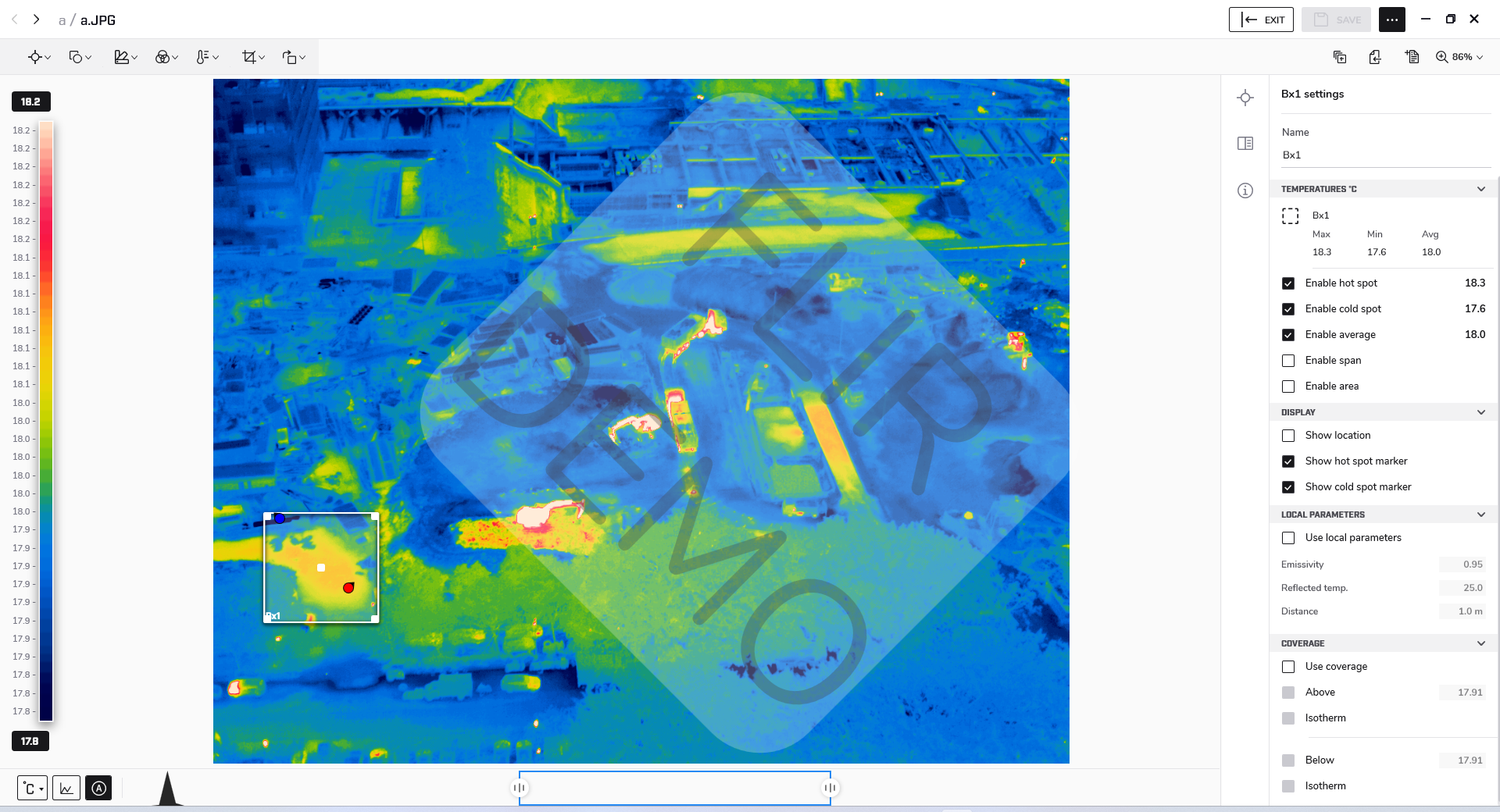
File → Open(or drag it in) and select a converted R-JPEG — not the original DJI file. The image loads with its thermal layer intact. - Use the measurement tools. Spot, area (box), and line-profile tools now return live temperatures.
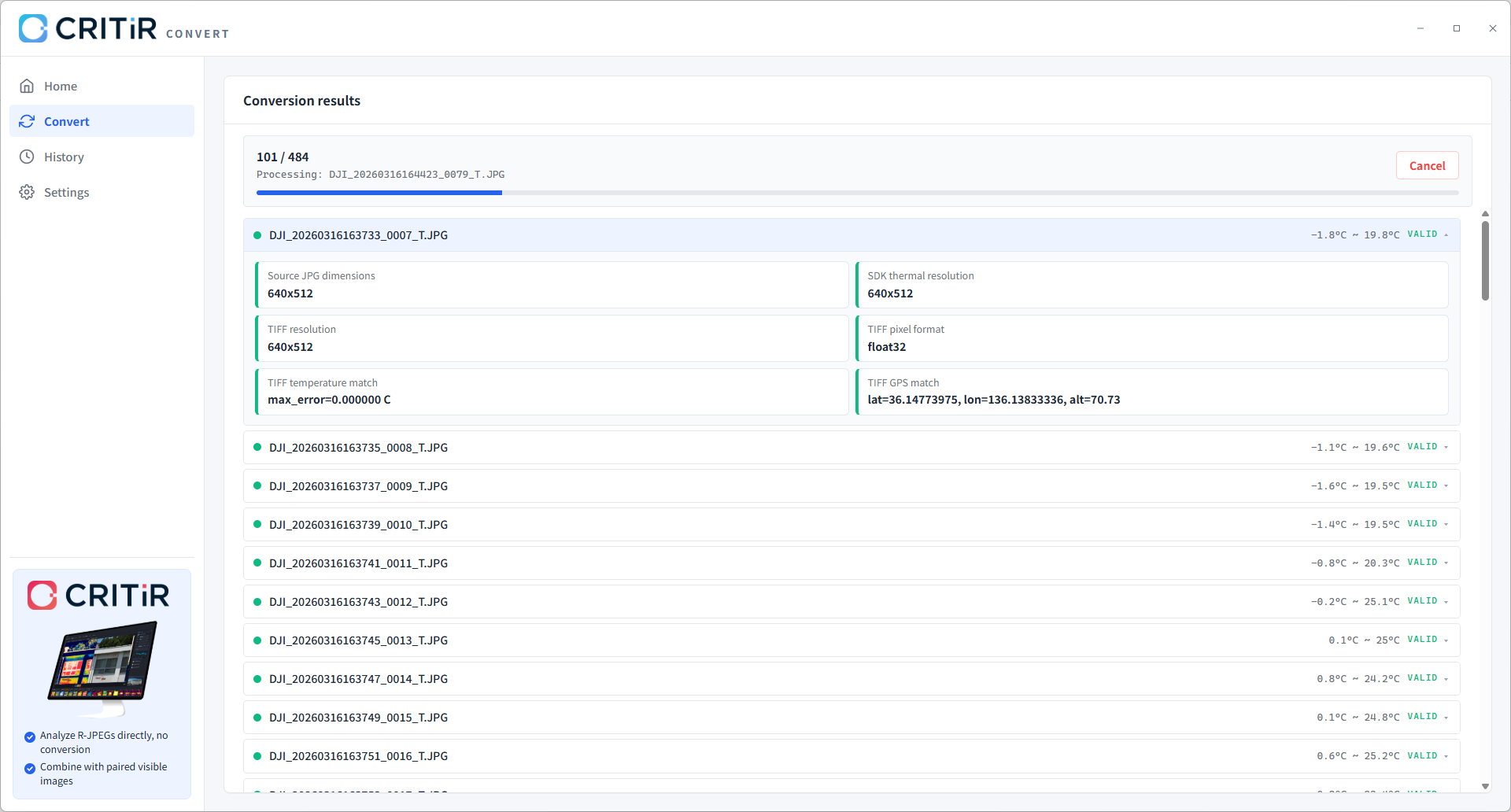
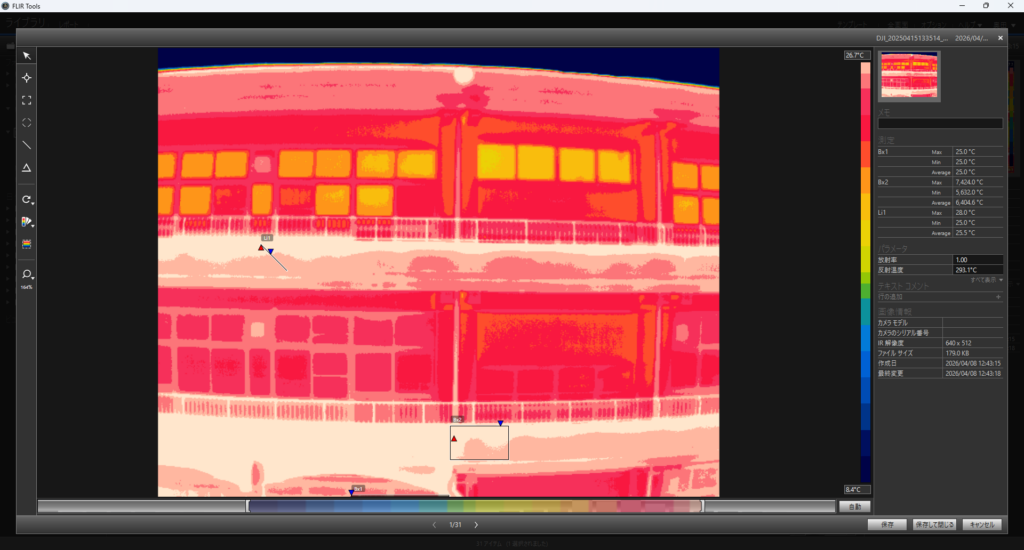
Emissivity, reflected temperature, atmospheric temperature, humidity, and distance — the values set in DJI Pilot 2 at capture time — travel through the conversion and arrive in FLIR Tools automatically. You do not re-enter them; the same parameters come back. If you need to apply different values (for example, a corrected emissivity for a specific surface), set them once during conversion and they are baked into the FLIR output for the whole batch.
Opening in FLIR Thermal Studio and ResearchIR
The same FLIR-compatible R-JPEG opens in FLIR Thermal Studio and ResearchIR with no extra steps — they read the same FFF structure as FLIR Tools.
- FLIR Thermal Studio: import the converted folder as you would any FLIR dataset. Batch measurement, report templates, and parameter editing all work because the files are now genuine FLIR-format R-JPEGs.
- ResearchIR: the converted R-JPEG opens with its radiometric layer; for time-series or high-rate analysis you will still want FLIR's native sequence formats, but for still-frame radiometry the converted R-JPEG is fully readable.
Will the temperature be correct after conversion?
CRITIR Convert includes a built-in verification step that automatically checks whether each converted file preserves its temperature accuracy and metadata. Every conversion is cross-checked against the original DJI file, so the round-trip error is reported as a concrete number rather than assumed.
The bottom line: that round-trip error is typically well under 0.01 °C (on real captures, usually in the 0.002–0.004 °C range) — far below the sensor's own thermal noise (NETD ≤ 50 mK = 0.05 °C on current DJI cores).
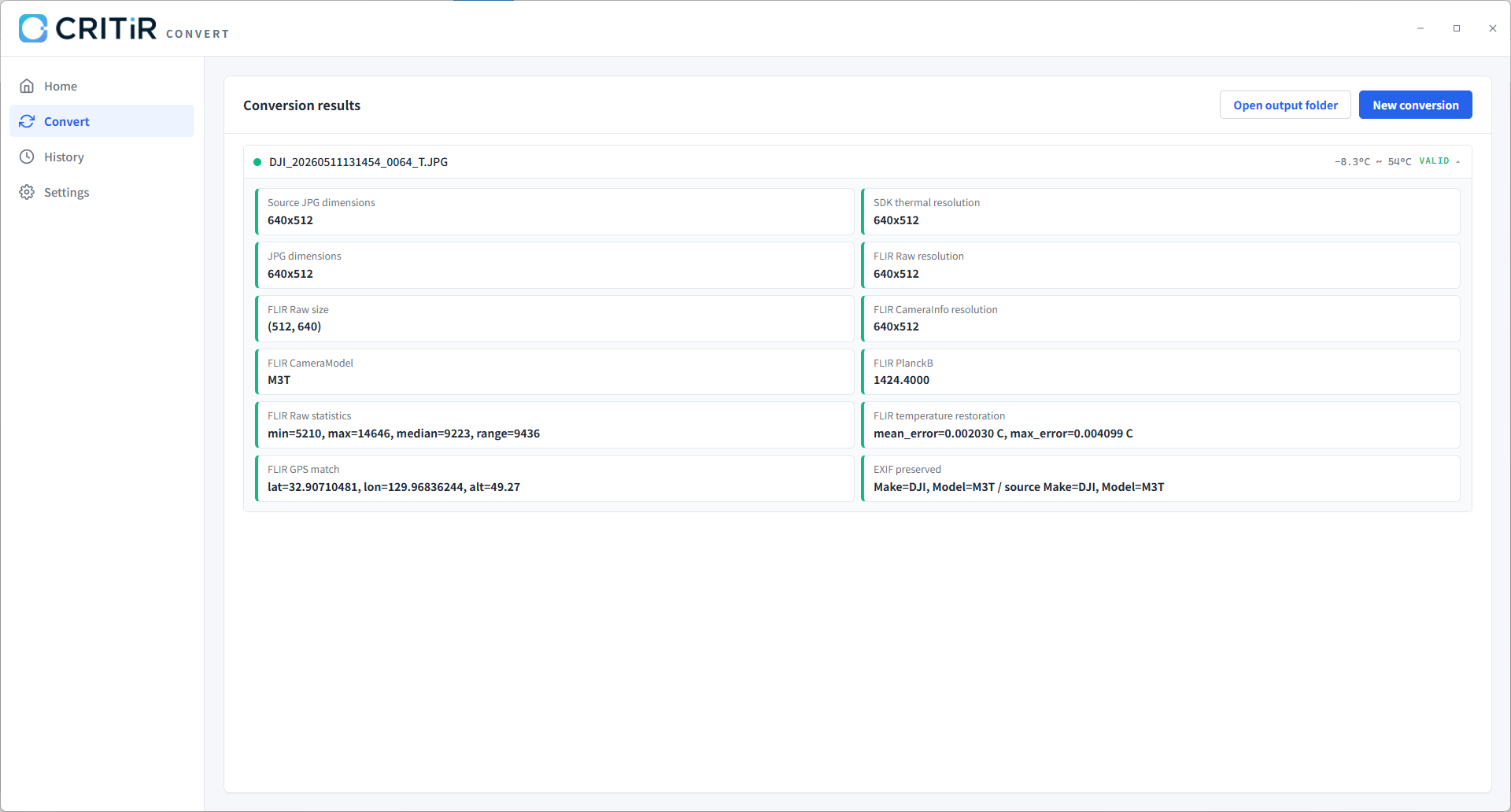
In practice, for inspection work that reports temperature differentials in tenths of a degree, the conversion error is invisible. The numbers you measure in FLIR Tools after conversion match the numbers DJI's own tool reports on the original file.
What happens when you adjust parameters in FLIR Tools after conversion
Once open in FLIR Tools, a converted file lets you adjust emissivity, reflected temperature, distance, humidity, and atmospheric temperature after the fact. Some of these behave exactly like DJI's own tool; others do not.
- Emissivity and reflected temperature — match the DJI tool almost exactly (within ±0.1 °C). Because these vary by material and surface, you can adjust them freely in FLIR Tools when inspecting different targets.
- Distance, humidity, and atmospheric temperature — follow FLIR Tools' own atmospheric model, so the amount they shift the reading differs from DJI (FLIR's atmospheric model is weaker than DJI's). To apply them at DJI accuracy, set them at conversion under "Override capture parameters." The software computes temperatures with the official DJI Thermal SDK, so values you set at conversion match the DJI tool.
Crucially, relative differences (ΔT) — how much hotter a spot is than its surroundings, the basis of most infrastructure inspection — match DJI after conversion regardless of the distance or atmospheric settings. The atmospheric correction essentially shifts the whole image uniformly, so it barely affects the difference between pixels. In short: set the parameters at conversion when you need absolute accuracy, and don't worry about the FLIR-side settings when you are detecting relative anomalies.
Valid ranges depend on the camera. For example the H20T limits object distance to 25 m and locks atmospheric temperature, while the H30T allows up to 300 m with adjustable atmospheric temperature. If you enter a value outside the range, the app shows the valid range.
Troubleshooting: still no temperature in FLIR Tools
If a file still won't open correctly, work down this checklist:
- You opened the original, not the converted file. The most common mistake. Confirm you selected the file from the output folder, not the source DJI folder.
- The file is a visible photo (
_Wor_Z), not thermal (_T). Only_Tfiles carry temperature. The wide and zoom files are ordinary photos and will never show thermal data. - The file was truncated during flight. A frame interrupted mid-write (battery swap, abrupt power-off) can be incomplete. Re-export from DJI Pilot 2 or drop that single frame.
- The colors look "flat" but measurements work. That is a palette/range display setting in FLIR Tools, not a data problem — adjust the level/span or auto-scale.
- A small subset of files from one flight fail. Occasionally an outlying aircraft firmware version writes a slightly different XMP layout. Update the aircraft firmware and re-export, or send a sample to your converter's support.
What if I'm targeting Pix4Dmapper or Metashape, not FLIR Tools?
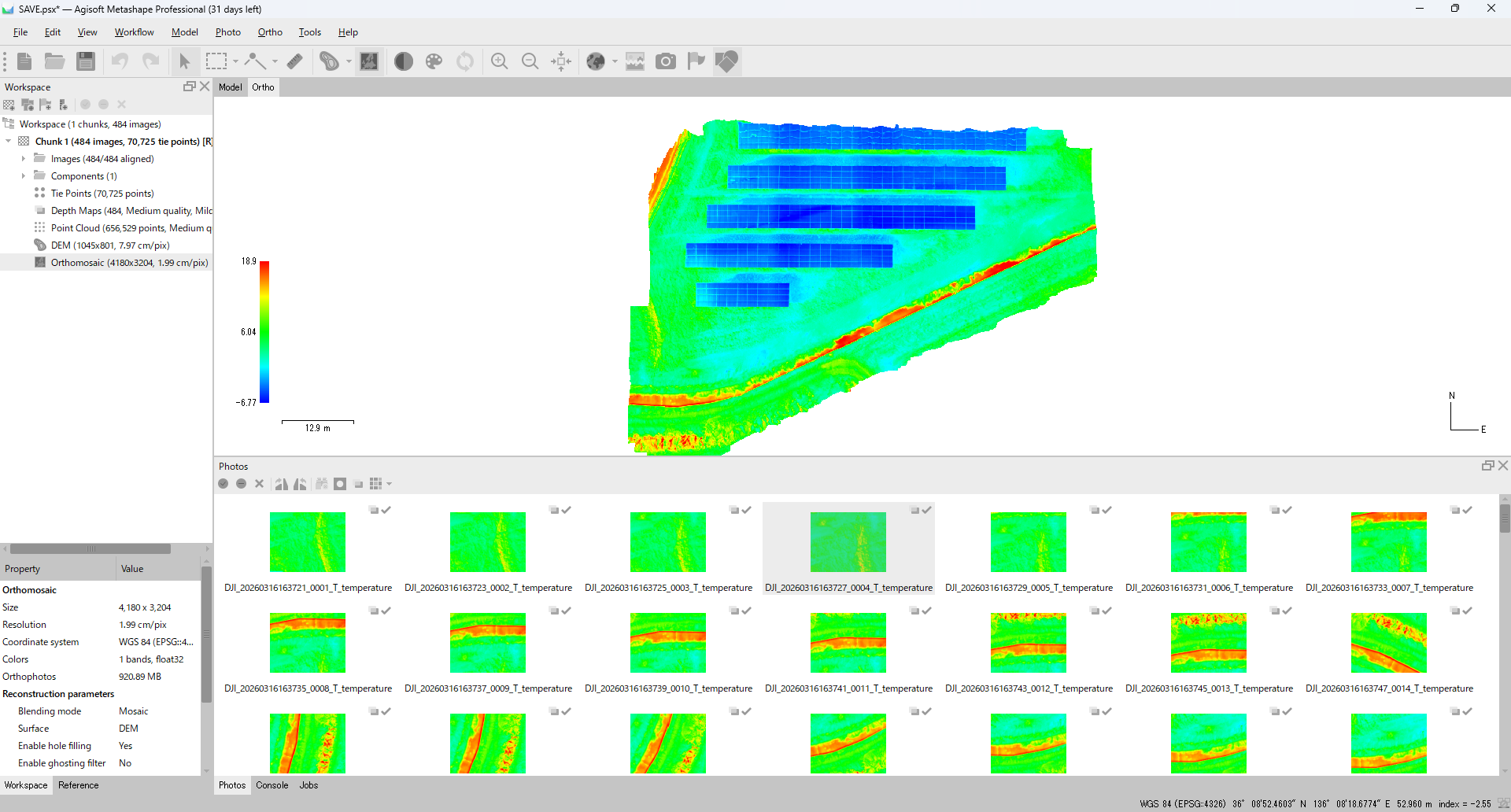
If your goal is a thermal orthomosaic rather than frame-by-frame analysis in FLIR Tools, FLIR-compatible R-JPEG is not the format you want — convert to single-channel float32 TIFF in degrees Celsius instead. That is the format Pix4Dmapper and Agisoft Metashape read cleanly for temperature. For what a float32 °C TIFF is and how to produce it, see the DJI thermal to TIFF guide; the full orthomosaic walkthrough is in the DJI thermal Metashape orthomosaic guide. CRITIR Convert can emit both FLIR R-JPEG and TIFF in a single pass, so you are not locked into one downstream tool.
The simpler alternative: don't convert at all
Conversion is reliable, but it is still an extra step in the post-flight pipeline. If your team's end goal is measurement, orthomosaics, and inspection reports — rather than specifically staying inside FLIR Tools — the sister app CRITIR reads DJI thermal R-JPEGs directly (no conversion), loads the paired wide/zoom visible images alongside the thermal, and generates reports in one application. The conversion step disappears entirely.
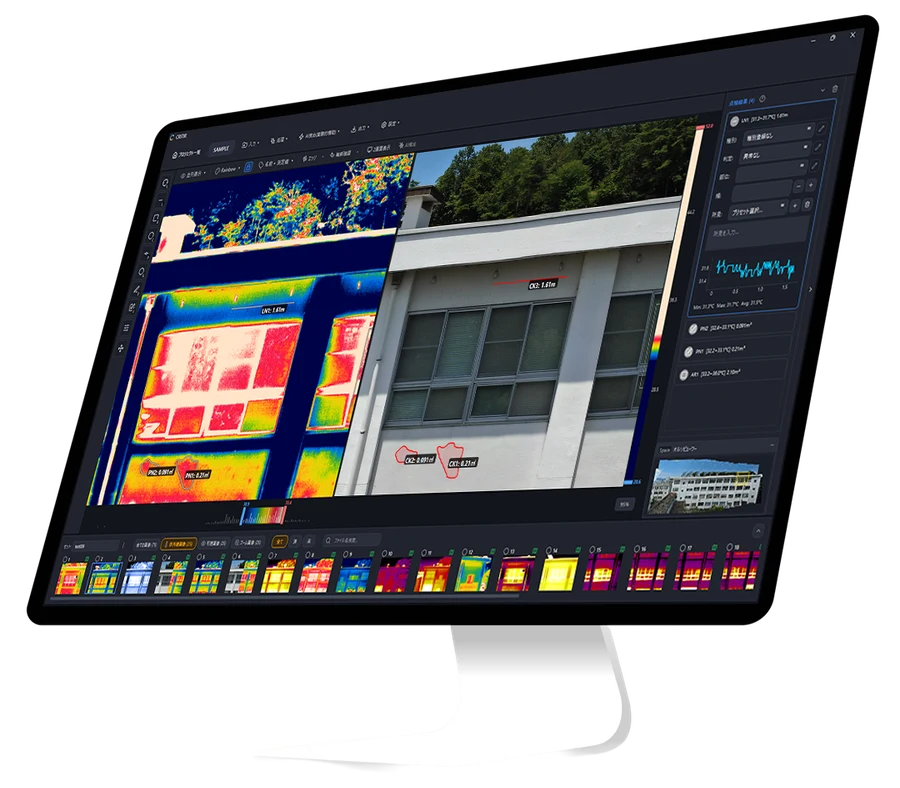
Which path fits depends on your workflow: keep FLIR Tools and convert, or drop the conversion step and analyze DJI files natively. The full tool comparison lays out every option — DJI's free tool, the commercial converters, and the integrated analysis route — with pricing.
FAQ
- Why does my DJI thermal image open as a normal photo in FLIR Tools?
- Because FLIR Tools looks for a FLIR FFF radiometric block, and DJI R-JPEGs don't contain one — they use DJI's own proprietary radiometric layout. FLIR Tools renders the JPEG preview but finds no temperature data. Re-encoding the file into FLIR-compatible R-JPEG fixes it.
- Is there a setting in FLIR Tools to import DJI files directly?
- No. There is no preference, plugin, or import menu that makes FLIR Tools read DJI's radiometric format. The file must be converted to FLIR's format first.
- Does converting change the measured temperatures?
- Not meaningfully. Because CRITIR Convert reads temperatures via the official DJI Thermal SDK, the round-trip error stays well under 0.01 °C — far below the sensor's own noise floor. Emissivity, reflected temperature, humidity, and distance carry through automatically.
- After conversion, does adjusting emissivity or distance in FLIR Tools match DJI?
- Emissivity and reflected temperature match the DJI tool almost exactly (±0.1 °C). Distance, humidity, and atmospheric temperature follow FLIR Tools' own atmospheric model, so their values differ from DJI — set these at conversion under "Override capture parameters" for DJI accuracy. Relative differences (ΔT) used for hot-spot detection match DJI regardless of the settings.
- Which DJI cameras does this apply to?
- It applies to DJI cameras that write DJI-format R-JPEGs: Mavic 2 Enterprise Advanced, Mavic 3T, Matrice 30T, Matrice 4T, Zenmuse H20T, H20N, and H30T. Older FLIR-sensor models such as the Zenmuse XT / XT2 and Mavic 2 Enterprise Dual open in FLIR Tools without conversion.
- Can FLIR Thermal Studio open DJI thermal images?
- Not directly — it has the same FFF requirement as FLIR Tools. Once the DJI file is converted to FLIR-compatible R-JPEG, it opens in FLIR Thermal Studio and ResearchIR as well.
- I only need the data in Pix4D or Metashape, not FLIR Tools. What do I do?
- Convert to single-channel float32 TIFF (values in °C) instead of FLIR R-JPEG. That is the format Pix4Dmapper and Metashape read for temperature. See the Metashape orthomosaic guide for the full workflow.
- How can I try this on my own files?
- Install CRITIR Convert and start the no-sign-up trial in the app for up to 30 conversions. We also offer a managed conversion service if you'd rather send us the files and receive the converted output.
The full list of supported DJI cameras is on the compatibility section, and pricing is on the pricing section. For questions about your specific FLIR Tools workflow, get in touch.
Related guides:
- Convert DJI thermal to FLIR Tools and Pix4D — full tool comparison — every conversion option in 2026, with pricing
- DJI Zenmuse H30T thermal conversion guide — the flagship 1280×1024 payload, step by step
- DJI Matrice 4T thermal conversion guide — the M4T integrated airframe
- DJI thermal Metashape orthomosaic guide — TIFF → Metashape, for when FLIR Tools is not the target
- Convert DJI thermal R-JPEG to TIFF — the float32 °C TIFF format for Pix4Dmapper, Metashape, QGIS, and ArcGIS
Try CRITIR Convert
Convert DJI thermal R-JPEGs into FLIR-compatible files. Free trial with up to 30 conversions.
See the product page